

Make GA4 Events Ad Ready for Ticketed Marketers with Taxonomy

Updated: 5 days ago

GA4 records nearly every interaction as an event, and most of that collection happens the moment you install the tag. Your job is to confirm what’s already firing automatically, then layer in recommended or custom events through gtag.js, Google Tag Manager, or Firebase for anything the default setup misses. Start by opening your GA4 property’s Enhanced Measurement settings before you write a single line of code.
TL;DR:
Most GA4 events are automatically collected or enabled via enhanced measurement, so avoid recreating events for actions Google already tracks for free.
Planning a consistent event taxonomy with clear naming conventions and required parameters is crucial to prevent fragmented data and unreliable reporting.
Use DebugView and real-time reports to verify events fire correctly, ensuring parameters like currency and item details are accurate before analyzing broader data.
Marking events as key conversion actions in GA4 triggers their flow into Google Ads for attribution, but only do this for genuinely business-critical events like purchases.
Payload size limits and user privacy restrictions can cause undercounting or missing data, so regularly reconcile GA4 event counts with your source systems for accurate tracking.
Table of Contents
What Are the Different Types of GA4 Events?
GA4 sorts every interaction into one of four buckets, and knowing which is which saves you from rebuilding things Google already gives you for free.
Automatically collected events fire the instant your tag loads, no configuration needed: session_start, first_visit, page_view.
Enhanced measurement events cover on-page behavior like scroll, click (outbound links), file_download, and video_start. These are toggleable in the property’s data stream settings. You can flip individual ones off if they’re generating noise.
Recommended events are Google’s named templates for common actions, login, share, purchase, and dozens more. They require manual setup, but come with predefined parameters that unlock built-in reports.
Custom events are anything unique to your organization, like season_pass_renewed or virtual_tour_started, that no template covers.
The official events reference documents the full gtag('event', ...) syntax for web implementations. Default to recommended events whenever one fits your action. Reserve custom events for the genuinely unusual, because every event you invent is one more thing you have to document and maintain.
How Should You Plan Your Event Taxonomy Before Building Anything?
A documented event register is not busywork. It’s the difference between clean cross-channel reporting and a GA4 property full of near-duplicate events that nobody trusts. Practitioner guidance from Analytics Mania consistently flags taxonomy planning as the step most teams skip, and it’s usually the reason their reports look fragmented six months later. Google’s own machine-learning-driven bidding models depend on consistent event names and parameters too. Rename add_to_cart to AddToCart on one page and add-to-cart on another, and you’ve split one signal into three weak ones.
Before you touch any code, work through this sequence:
List every user action worth measuring, from a season-ticket renewal to a program download.
Match each action to a recommended event name where one exists; only create a custom name when nothing fits.
Define required parameters for each event (value, currency, item IDs) in a shared spreadsheet, one row per event.
Assign a naming convention: lowercase, underscores instead of spaces, verb-first structure (begin_checkout, not checkout_begin).
Build a testing checklist mapped to each event before implementation starts.
Pro Tip: Keep your event register in a shared spreadsheet that both your marketing team and your developer can edit. The moment those two groups stop talking through the same document, your naming conventions start drifting.
How Do You Implement Events With gtag.js, GTM, or Firebase?
Your implementation method depends on how often your event list changes and who’s making those changes.
gtag.js works best for small sites with a lean set of events. You place a direct call, gtag('event', 'login', {method: 'Google'});, right after your base tag snippet loads, and it fires immediately. Minimal code, minimal flexibility.
Google Tag Manager is what most marketing teams end up preferring, because it separates event configuration from your codebase. You push structured data into the dataLayer, then GTM’s tags, triggers, and variables read that data and send it to GA4. Simo Ahava’s implementation guide walks through this dataLayer pattern in detail, and it’s the standard reference most agencies build from. The advantage: you can add or adjust events without redeploying code.
Firebase handles the app side. You log events natively (logEvent(FirebaseAnalytics.Event.LOGIN, params)), and Firebase syncs them into your linked GA4 property automatically.
Two hard limits apply regardless of method: GA4 caps events at 25 parameters each, and the entire payload can’t exceed 16 KB. Push past either ceiling and you risk incomplete data, not a clean rejection. Keep every event call positioned after your base measurement tag loads, never before, or the hit fires into nothing.
Which Recommended and Ecommerce Events Actually Require Parameters?
Recommended events aren’t a suggestion so much as a contract. Google’s own support documentation is explicit: these events must carry prescribed parameters or the prebuilt reports simply won’t populate. Send purchase without an items array and GA4 has nothing to show in your ecommerce reports, even though the event technically arrived.
For any revenue-generating event, four things are non-negotiable:
transaction_id, a unique identifier tied to the order or ticket confirmation.
value, the total transaction amount as a number.
currency, formatted as an ISO 4217 three-letter code (USD, EUR, GBP), never a symbol.
items, an array listing each product or ticket, with item_id, item_name, price, and quantity at minimum.
Currency formatting matters more than most teams realize. GA4’s link to Google Ads depends on that ISO 4217 code being exact. Get it wrong or leave it blank, and your revenue figures won’t reconcile with what Ads reports on the other side of that connection.
How Do You Verify Events Are Firing Correctly?
Never trust an implementation until you’ve watched it happen live. GA4 gives you two tools for this, and they serve different purposes.
Turn on DebugView by installing the Google Analytics Debugger Chrome extension or adding debug_mode: true to your event calls, then open DebugView in your GA4 property.
Trigger the action on your site or app and watch the event stream in as it happens, second by second.
Inspect each event’s parameters: is currency present and formatted correctly? Does the items array include every field? Is the event name spelled exactly as documented?
Cross-check volume in Realtime reports to confirm the event is registering at the property level, not just in your debug session.
Remember that DebugView shows raw arrivals for a single session and never feeds standard reports. Processed data lands in your normal reports after a delay, sometimes up to a day, so don’t panic if DebugView looks clean but yesterday’s report doesn’t match yet.
How Do You Mark Key Events for Ad Attribution?
Collecting an event and marking it as a key event (GA4’s term for what Universal Analytics called a goal or conversion) are two separate steps. Marking an event doesn’t change how it’s collected. It flags that event as eligible for attribution modeling and export to Google Ads.
Go to Admin > Events in your GA4 property and toggle “Mark as key event” next to any qualifying event.
Only mark events that represent genuine business value, a purchase, a ticket confirmation, a qualified lead form. Marking scroll as a key event just adds noise to your Ads conversion list.
Once marked, that event flows into Google Ads as a conversion action, feeding the bidding algorithms that decide where your ad dollars go.
Consistent parameters matter here too: an event with missing value data gives Ads a weaker signal to optimize against, which drags down the quality of automated bidding over time.
Why Are Your Events Undercounting or Missing Entirely?
Most “missing data” complaints trace back to a handful of repeat offenders.
Payload size: GA4 batches up to 20 events per request and caps each batch at 16 KB. Exceed that, and only part of the batch may process. Trim unnecessary parameters on high-frequency events.
Consent banners and ad blockers: if a visitor declines analytics consent or runs a blocker, that session simply never reports. This is expected loss, not a bug.
Duplicate tags: two GA4 tags firing on the same page double-count events. Audit your container regularly.
Reconciliation gaps: GA4 will always undercount against your ticketing or order system by some margin. Treat your ticketing platform as the source of truth and use GA4 for trend and channel-level insight, not exact revenue.
Pro Tip: Run a monthly reconciliation between your GA4 purchase count and your ticketing system’s confirmed sales. Anything wider usually points to a tagging or consent issue worth chasing down.
What Do Real Event Examples Look Like in Practice?
Seeing the parameters laid out for common actions makes the abstractions above concrete.
Login: send login with a single method parameter (Google, email, Facebook) to track which authentication path visitors use.
Content share: send share with method (the sharing channel) and content_type or item_id identifying what got shared.
Ticketing funnel: chain four events in order, view_item, add_to_cart, begin_checkout, and purchase. Each carries an items array with ticket type and price; the final purchase event adds transaction_id, value, and currency. This sequence, detailed in ticketing-specific implementation guides, lets you pinpoint exactly where a buyer abandons the funnel, whether it’s at seat selection or payment.
The Opti Arts Take on Disciplined Event Tracking
Opti Arts builds ticket-sales dashboards for theaters and museums, and clean GA4 event data is what makes those dashboards trustworthy. A consistent taxonomy isn’t academic. It’s what lets a season-ticket campaign get optimized against real purchase signals instead of guesswork.
— Trevor
Where to Go for Official Documentation
Bookmark Google’s recommended events reference and its event setup guide for exact parameter lists and syntax whenever you add a new event.
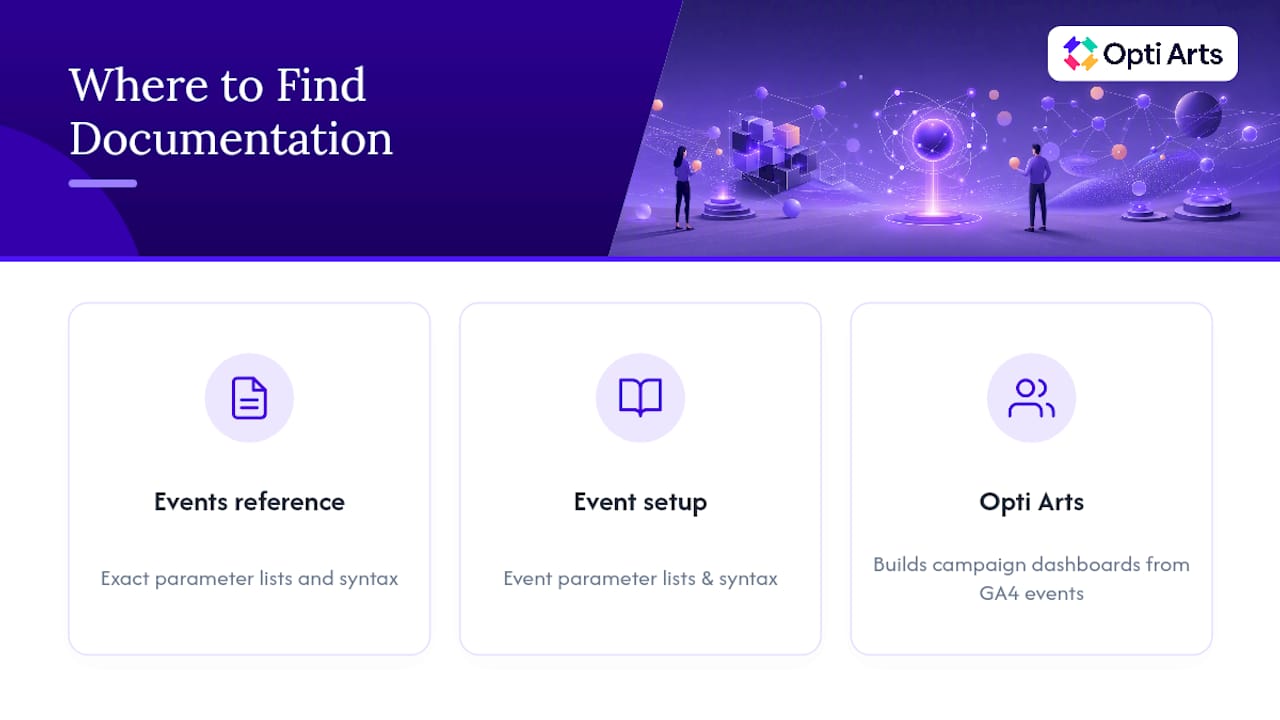
Ready to turn clean event data into a working ticket-sales strategy? Opti Arts’ analytics team builds campaign dashboards around exactly this kind of disciplined GA4 setup, so your cultural organization’s ad spend follows real signals instead of assumptions.
Sources
Recommended